 Shotlore
Installing the Shotlore Field beta
Shotlore Field is free. On Android it's now on Google Play: no testers group needed, just install it. On iPhone and iPad it's still in beta through Apple's TestFlight. It takes about two minutes. Do it on the phone itself, not on a computer.
iPhone and iPad
-
Install TestFlight
TestFlight is Apple's free app for trying apps before they're in the App Store. Get TestFlight from the App Store.
-
Open the Shotlore Field beta link on your iPhone or iPad
Tap testflight.apple.com/join/vqkkcAdP on the iPhone or iPad itself. You'll see Apple's page with two steps. Step 1 is TestFlight, which you have now; under Step 2, tap View in TestFlight.
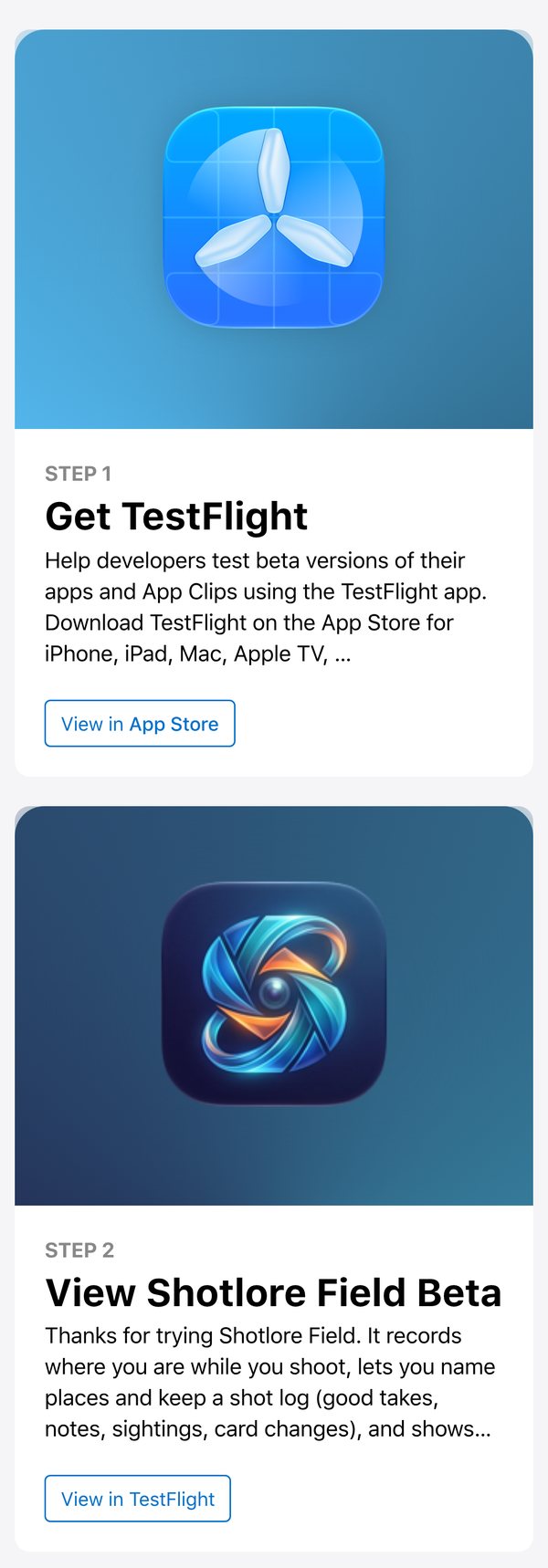
The beta link opens this page. Tap View in TestFlight. -
Tap Accept, then Install
TestFlight opens on Shotlore Field. Tap Accept, then Install. Shotlore Field appears on your home screen with a small orange dot by its name, which marks a beta app.
-
Open Shotlore Field and allow location and Motion & Fitness
When it asks, allow location While Using the App with Precise Location on: it's how the app records where you were. On the first recording it also asks for Motion & Fitness; allow it, because that's how it tells a phone lying still from a phone on the move and keeps the track clean. On a shoot day, tap Start recording when you start and Stop when you finish. The phone can stay in your pocket with the screen off; a blue pill at the top of the screen shows it's recording.
-
Updates
TestFlight tells you when there's a new build, or installs it for you if you turn on automatic updates. Each build works for 90 days; we'll have sent a newer one before then.
Feedback from iPhone: take a screenshot while you're in Shotlore Field, tap the thumbnail, then Share Beta Feedback. Or email hello@shotlore.app. With a public TestFlight link, Apple doesn't show us your name or email unless you add them.
Android
-
Join the testers group
Google Play lets testers in through a Google Group. On your phone, open the Shotlore Field testers group and tap Join group. It's one tap; the group sends no email.
If there's no Join group button, you aren't signed in: tap Sign in at the top right with the Google account on your phone, and the button appears.
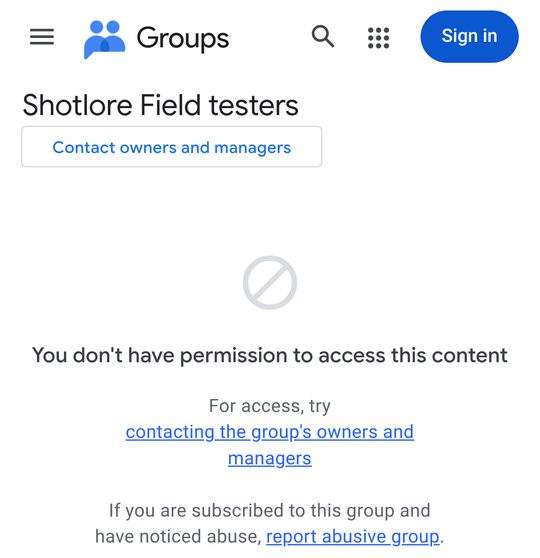
No Join group button? Tap Sign in first. -
Become a tester
Open the Shotlore Field tester page and tap Become a tester. Don't skip this step: without it Google Play says "Item not found". If the page says the app isn't available to you, you joined the group with a different Google account: go back to step 1 with the account that's on your phone.
-
Install from Google Play
On the same page, tap the link to Google Play, or open Shotlore Field on Google Play, and tap Install. If Play says "Item not found", check you did step 2, then wait up to an hour: Google can be slow to let a new tester in.
-
Open Shotlore Field and allow location
When it asks, allow location with Precise on, and allow notifications so the recording can show that it's running. On a shoot day, tap Start recording when you start and Stop when you finish; a notification shows while it records. Tap Good take, Note, Sighting or Card change as things happen.
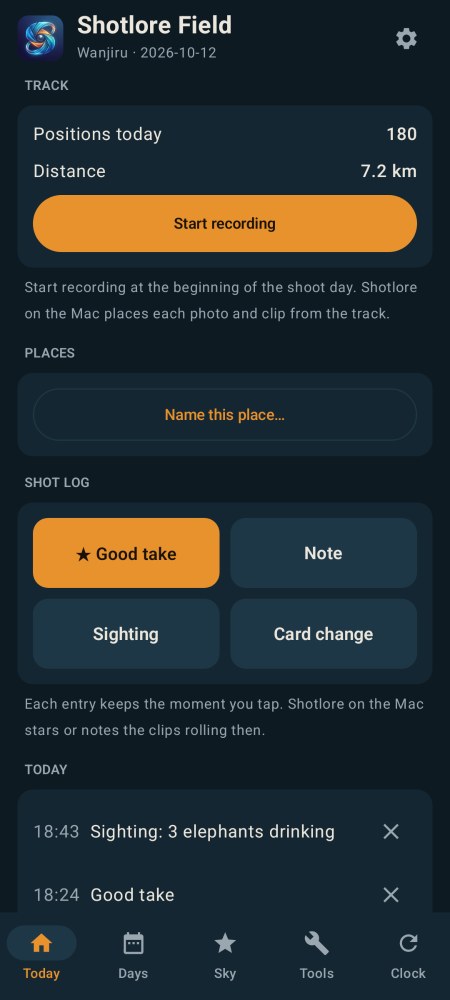
The Today screen. Start recording, then pocket the phone. -
Keep it installed for 14 days
Google releases the app to everyone only after enough testers have had it for two weeks, so please leave it on your phone. Updates arrive through the Play Store like any other app.
Feedback from Android: email hello@shotlore.app or use Suggest a feature. A screenshot helps.
Shotlore on your Mac or PC
Shotlore Field records the day; Shotlore on the computer puts it onto your footage. To test both (and to earn the bigger licences), install Shotlore too.
Get a trial key
Ask for a free 14-day trial key (or tick Mac or Windows when you join the beta). It arrives by email straight away. Use the same email when you claim your licence later.
Download and install
Download Shotlore for Mac (macOS 12 or later, Apple silicon or Intel) or Windows 10 or 11. Open it and paste the key when it asks. If your Mac says it can't check the app, or Windows says it protected your PC, see Installing Shotlore.
Get the day onto the computer
In Shotlore Field, open Days. iPhone: tap the share icon beside the day and AirDrop it to your Mac, or Mail it, or Save to Files. Android: Save to Files… or Send today to the Mac or the producer (WhatsApp, Gmail, Drive, Quick Share). It's one GPX file, a few hundred KB.
Put the day onto the footage
In Shotlore, start a job, add the card copies, then add the GPX under Files & track. Set each camera's clock from the photo of Field's clock QR (or type the offset), and the files land on the map where they were shot, with the day's shot log and place names. The manual walks through the rest. Keywords and captions from AI are an optional extra: you don't need them to test.
Make the shoot report
Choose Shoot report. It saves one HTML page for the job; that page, with the day's GPX, is what you send at shotlore.app/beta/claim.
On the shoot
- Tap Start recording as you arrive and leave it running until you wrap. Charge the phone overnight; a day uses roughly 10 to 20% of the battery.
- Photograph Field's clock screen with each camera once (the first shot of the card is easiest). That lines the camera's clock up with the track.
- Log as you go: Good take, Note, Card change, Sighting. Name the places you'll come back to.
- At the end, tap Stop and send the day to your computer.
If something goes wrong
Android
- "Item not found" in Google Play
- This is the most common problem, and it nearly always means Google Play is looking at a different Google account from the one that joined the testers group. Fix it in this order:
- Open the Play Store app, tap your picture at the top right and look at which account is ticked. If you have more than one, switch to the one you joined the group with, or join the group again with this one.
- Signed in with that same account, open the testers group and check it says you're a member (or tap Join group).
- Open the tester page and tap Become a tester. If it says you're already a tester, that's fine.
- Open Shotlore Field on Google Play and tap Install.
- "You don't have permission to access this content" on the group page
- Use this link to the group, which always shows the Join group button. If it still doesn't, tap Sign in at the top right first.
- "App not available" or "You're not eligible" on the tester page
- The account in your browser hasn't joined the group, or isn't the one the Play Store uses. Check the picture at the top right of both, join the group with the Play Store's account, wait a few minutes and try again.
- I have two Google accounts on the phone
- Join the group and become a tester with the account the Play Store uses (open Play and tap your picture at the top right to see it). The account in Chrome or Gmail doesn't matter.
- "Your device isn't compatible with this version"
- Shotlore Field needs Android 8 or later and the Google Play Store. Phones without Google Play (most recent Huawei and Honor models) can't install it from Play yet. Email us with the phone's model and we'll see what we can do.
- I'm a tester but I don't get updates
- Updates come through the Play Store like any other app. Open Play › your picture › Manage apps & device › Updates available. Turning on auto-update for Shotlore Field saves doing this each time.
iPhone
- The link opens a web page instead of TestFlight
- Install TestFlight first, then tap the beta link again on the iPhone.
- TestFlight says the beta is full or isn't accepting new testers
- Email hello@shotlore.app and we'll open more places.
- TestFlight says the app isn't available
- Apple may still be checking a new build. Wait an hour and open the beta link again. Updating TestFlight from the App Store can also help.
- Install is greyed out, or it says the app needs a newer iOS
- Shotlore Field needs iOS 17 or later. Update in Settings › General › Software Update.
Mac and Windows
- The Mac says Shotlore can't be opened, or can't check it
- See Installing Shotlore › blocked. In short: open System Settings › Privacy & Security, scroll down and click Open Anyway.
- Windows says it protected your PC
- Click More info, then Run anyway. Details on Installing Shotlore.
- The trial key didn't arrive
- Look in spam and Gmail's Promotions tab for mail from hello@shotlore.app, or ask again at shotlore.app/trial with the same email: it sends the same key.
- The files don't land on the map
- Shotlore places each file by its time, so the camera's clock has to be lined up with the track: in Shotlore, set the clock for each camera from the photo of Field's clock QR (or type the offset). Check also that the GPX covers the hours you shot and that you added the right day.
- The claim page won't accept my shoot report
- It needs Shotlore 0.8.0 or later, the report made after the shoot with the day's GPX in the job, at least 20 camera files shot while the Field track was recording, and the trial or licence registered to the email you claim with. The page says which is missing. You can also send the Field day alone for the first level.
Recording, emails and your licence
- Recording stops when the screen is off
- Check that location is allowed for Shotlore Field in your phone's Settings. On Android, set its battery use to unrestricted (Settings › Apps › Shotlore Field › Battery; the names vary a little by phone). On Samsung, also add it to Never sleeping apps (Settings › Battery › Background usage limits). The tracking guide has more.
- The install steps or licence email never arrived
- Look in spam and, in Gmail, the Promotions and Updates tabs, for mail from hello@shotlore.app. You don't need the email to install: the steps are on this page. For a lost licence, email hello@shotlore.app from the address you claimed with and we'll send it again.
- The claim page won't accept my day
- The day must come from Shotlore Field itself, be recorded since the beta opened (13 October 2026), cover at least 3 hours with at least 100 positions, and have at least one log entry (good take, note, sighting or card change) or a named place. The page says which of these is missing. To get the file, open Days in Shotlore Field, then on iPhone tap the share icon beside the day; on Android tap Save to Files…
- The track zigzags while the phone lies still (iPhone)
- Allow Motion & Fitness for Shotlore Field (Settings › Shotlore Field › Motion & Fitness) and update to the latest build in TestFlight. Indoors, the phone's position can drift by tens of metres; Shotlore Field keeps one place while the phone is still.
Still stuck? Email hello@shotlore.app with your phone model and a screenshot.